
⚡ Quick Overview: Canva AI Image Generator
- 🎯 Best For: Non-designers, social media managers, small business owners needing quick visuals
- 💰 Pricing: Free (limited) | Pro $15.00/month | Business $20.00/user/month
- ⭐ Our Rating: 4.0/5 – Excellent integration, good for basic needs, limited artistic control
- ✅ Free Tier: Yes – 50 AI image generations included with free Canva account
- 🔑 Key Strength: Seamless integration with Canva’s design ecosystem and templates
- ⚠️ Main Limitation: Lower image quality than dedicated AI generators; limited customization
✅ Choose Canva AI If:
- You already use Canva for design work
- You need quick social media graphics
- You’re not a professional designer
- You want AI + design tools in one platform
🔄 Consider Alternatives If:
- Maximum image quality is essential
- You need photorealistic results
- You want full prompt control
- You’re creating fine art or professional photography
The Bottom Line: Canva AI is the best choice for non-designers who need quick, good-enough visuals integrated directly into their design workflow. It won’t compete with Midjourney or DALL-E for quality, but for social media graphics, presentations, and marketing materials, the convenience factor is unbeatable.
🎁 Try Canva AI Free
Get FREE 50 credits for Text-to-Image (Magic Media) and FREE 20 credits for Dream Lab lifetime totals with your Canva account. No credit card required.
🔥Or get 50% off for Canva Pro or Business for the first 3 months.🔥
📑 Table of Contents
What is Canva AI Image Generator? The Design-First Approach
Canva AI Image Generator (also called “Text to Image” or “Magic Media”) is Canva’s built-in AI tool that creates images from text descriptions directly within the Canva design platform. Unlike standalone AI image generators, Canva’s approach integrates AI generation seamlessly into your design workflow—generate an image and immediately place it in your social post, presentation, or marketing material.
Launched in late 2022 and continuously updated through 2026, Canva AI has become the go-to option for the platform’s 170+ million monthly users who need quick visuals without switching between tools. The generator uses technology licensed from Stable Diffusion combined with Canva’s own training data to produce images optimized for design applications.
What sets Canva AI apart isn’t the image quality—dedicated tools like Midjourney and DALL-E 3 produce superior results. Instead, Canva’s advantage is workflow integration. Generate an image, drag it into your design, apply filters, add text, and export—all without leaving the platform. For non-designers creating everyday content, this convenience outweighs quality differences.
In this Canva AI review, I’ll cover everything from features and pricing to honest quality comparisons. Whether you’re considering Canva Pro for the AI features or wondering if dedicated generators are worth the extra step, this guide will help you decide. For a broader view of the market, see our Best AI Image Generators 2026 guide.
💡 Canva AI vs Dedicated Generators: The Real Trade-off
Canva AI produces 6.5/10 quality images compared to Midjourney’s 9/10. But Canva saves 5-10 minutes per design by eliminating the download-upload workflow. For most social media and marketing use cases, speed beats perfection. For portfolio work or high-stakes campaigns, use dedicated tools.
Canva AI Key Features & Capabilities
Canva’s AI features extend beyond basic text-to-image generation. Here’s the complete suite of AI tools available in 2026:
1. Text to Image (Magic Media)
The core AI image generator lets you describe what you want and receive four generated options. Recent 2025-2026 updates have significantly improved quality, though it still lags behind dedicated generators. The interface is deliberately simplified—enter a prompt, optionally select a style (Photo, Drawing, 3D, Painting, etc.), and generate.
Key capabilities include:
- Style presets: Photo, Watercolor, Anime, 3D, Painting, Drawing, Pattern
- Aspect ratios: Square (1:1), Landscape (4:3, 16:9), Portrait (3:4, 9:16)
- Generation count: 4 variations per prompt
- Resolution: Up to 1024×1024 (varies by style)
2. Magic Edit (AI Object Replacement)
Select any area of an existing image and describe what you want to add or change. Canva’s AI replaces the selection while maintaining visual consistency. This is Canva’s version of Adobe Firefly’s Generative Fill, though less sophisticated.
3. Magic Expand
Extend images beyond their original boundaries using AI outpainting. Useful for converting images between aspect ratios—turn a square image into a landscape banner without awkward cropping.
4. Magic Eraser
Remove unwanted objects from images by brushing over them. The AI fills the area with contextually appropriate content. Great for removing watermarks (from your own images), distractions, or unwanted elements from photos.
5. Magic Write
While not image-related, Canva’s AI writing assistant helps generate copy for your designs—headlines, body text, social captions, and more. Powered by GPT technology.
6. Background Remover
One-click background removal from any image. The AI edge detection has improved dramatically and now handles complex subjects like hair reasonably well.
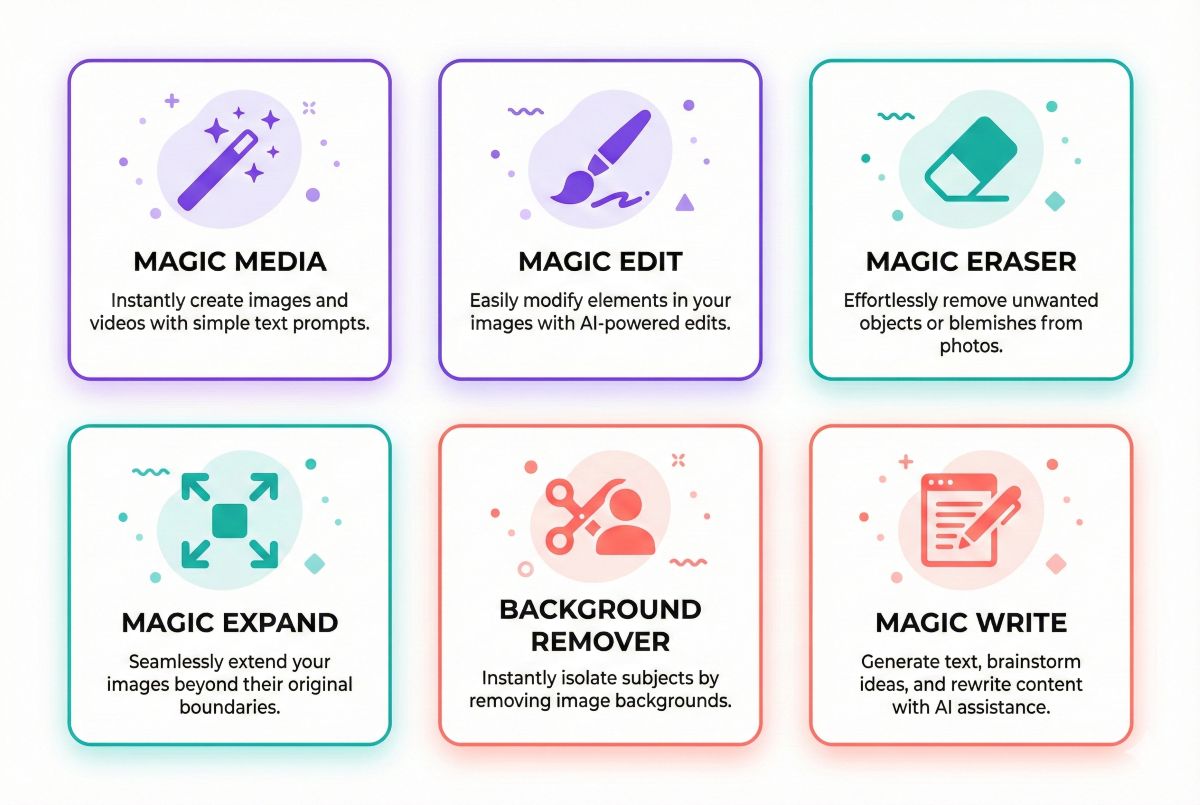
Magic Studio: Canva’s AI Hub
Canva groups all AI features under “Magic Studio” in the editor. Access everything from one location—text to image, magic edit, background remover, and more. The unified interface makes discovering and using AI tools intuitive even for beginners.
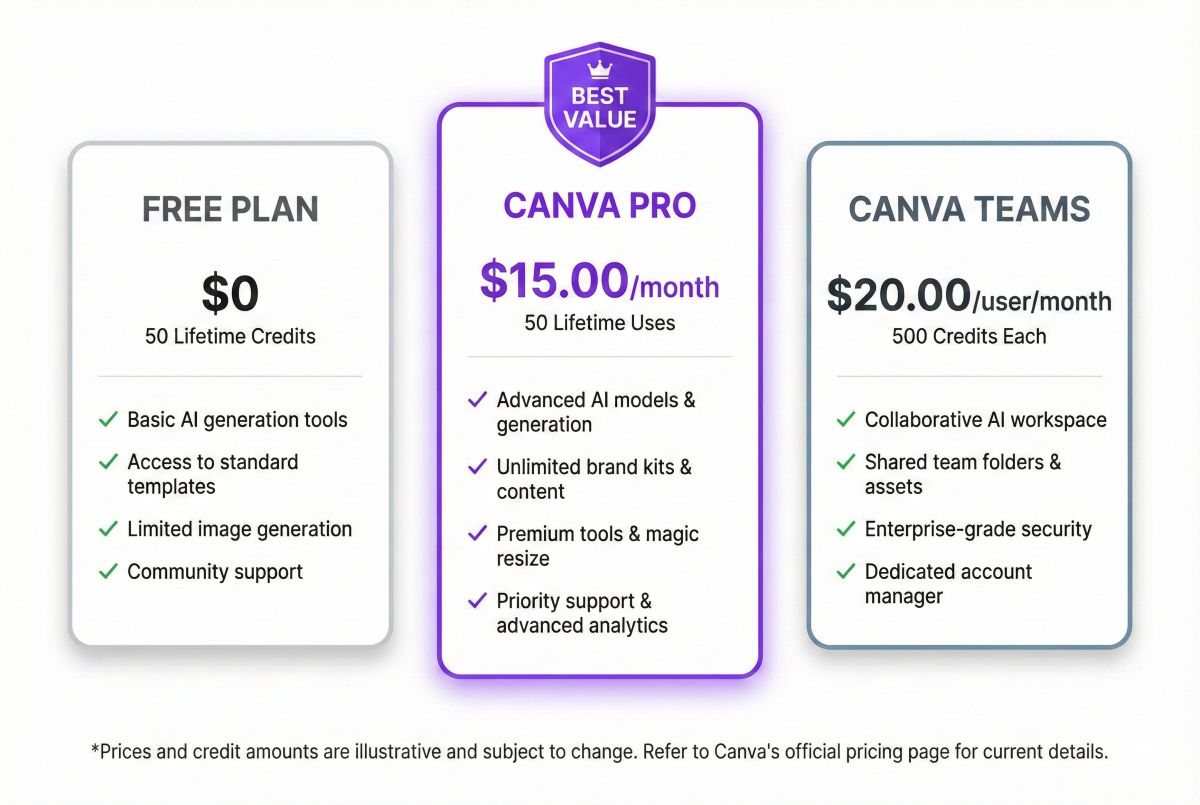
Canva Pricing & AI Credits 2026
Canva’s pricing affects AI feature access significantly. Here’s how the plans compare for AI image generation:
| Plan | Monthly Price | AI Image Credits | Other AI Features |
|---|---|---|---|
| Canva Free | $0 |
50 lifetime uses (Magic Media) / 20 lifetime uses (Dream Lab) |
Limited Magic Write (50 lifetime uses), no Magic Eraser or advanced tools. |
| Canva Pro | $15.00 | 500/month |
Full Magic Studio access (Magic Eraser, Magic Expand, Magic Grab). Magic Write: 500 uses/mo. |
| Canva Teams (formerly teams) | $20.00/user | 500/month per user |
All Pro features + Centralized Brand Kits, Team Reports, & Collaboration tools.(AI limits are per user) |
| Canva Enterprise | Custom | Unlimited (subject to fair use) | All Business features + SSO, multiple teams, and advanced admin controls. |
Understanding Canva AI Credits
Each AI image generation uses 1 credit. With 4 images generated per prompt, that’s still 1 credit—not 4. Magic Edit, Magic Expand, and Magic Eraser each use 1 credit per operation. Background Remover is unlimited on paid plans.
For most users, 500 monthly credits is generous. Heavy users might need additional credits at approximately $5 per 100 credits.
💡 Canva Pro Value Analysis
At $15.00/month, Canva Pro includes 500 AI credits, 100+ million premium stock photos, 610,000+ templates, Brand Kit, Background Remover, Magic Resize, and 1TB cloud storage. Even without AI, it’s excellent value. The AI features are essentially a bonus.
For more Free AI Image generations read our Guides: Free AI Image Generators: Top 10 No-Cost Tools → or for More AI tools coverage 30 Best Free AI Tools (100% Free – No Credit Card Required) →
How to Use Canva AI Image Generator
Using Canva’s AI image generator is straightforward. Here’s a step-by-step guide:
Step 1: Open Magic Media
In any Canva design, click “Apps” in the left sidebar, then select “Magic Media” or search for “Text to Image.” Alternatively, access it through Magic Studio in the toolbar.
Step 2: Write Your Prompt
Describe the image you want in natural language. Be specific about subject, style, colors, composition, and mood. Example: “A cozy coffee shop interior with warm lighting, plants on wooden shelves, morning sunlight through windows, hygge aesthetic.”
Step 3: Choose Style (Optional)
Select a style preset to guide the aesthetic: Photo, Watercolor, Anime, Filmic, Retrowave, Dreamy, 3D, Pattern, or None (let AI decide).
Step 4: Generate & Select
Click “Generate” to create 4 variations. Review options and click your favorite to add it to your design. If none work, refine your prompt and regenerate.
Step 5: Edit & Enhance
Once placed in your design, apply Canva’s editing tools—filters, adjustments, cropping, text overlay, etc. This integration is Canva AI’s biggest advantage.
Prompting Tips for Better Results
- Be specific: “Golden retriever puppy playing in autumn leaves, soft afternoon light” beats “dog in park”
- Include style cues: “minimalist flat illustration” or “photorealistic product shot”
- Mention composition: “centered portrait,” “wide angle landscape,” “close-up detail”
- Add mood/atmosphere: “cozy,” “professional,” “vibrant,” “muted tones”
- Avoid complex scenes: Canva struggles with multiple subjects and detailed interactions
Canva AI Image Quality Analysis
Let’s be honest about where Canva AI stands in terms of quality. I tested identical prompts across Canva, Midjourney, DALL-E 3, and Leonardo AI:
Quality Ratings by Category
| Category |
Canva AI |
Midjourney |
DALL-E 3 |
Leonardo AI |
|---|---|---|---|---|
| Overall Quality | 6.5/10 | 9/10 | 8.5/10 | 8/10 |
| Photorealism | 5.5/10 | 9/10 | 8/10 | 8.5/10 |
| Artistic Styles | 6/10 | 9.5/10 | 8/10 | 8.5/10 |
| Text Rendering | 4/10 | 6/10 | 9/10 | 5/10 |
| Prompt Accuracy | 6.5/10 | 8/10 | 9/10 | 7.5/10 |
| Consistency | 7/10 | 8/10 | 8.5/10 | 7/10 |
What Canva AI Does Well
- Simple subjects: Single objects, products, and basic scenes render cleanly
- Illustration styles: Flat design, icons, and simple graphics are reliable
- Social media graphics: Backgrounds, patterns, and decorative elements work well
- Speed: Generation is fast (5-10 seconds typical)
Where Canva AI Struggles
- Human faces: Often distorted, especially in complex poses
- Hands and fingers: The classic AI problem persists
- Complex scenes: Multiple subjects interacting often goes wrong
- Text in images: Usually illegible or nonsensical
- Fine details: Textures and intricate patterns lose quality
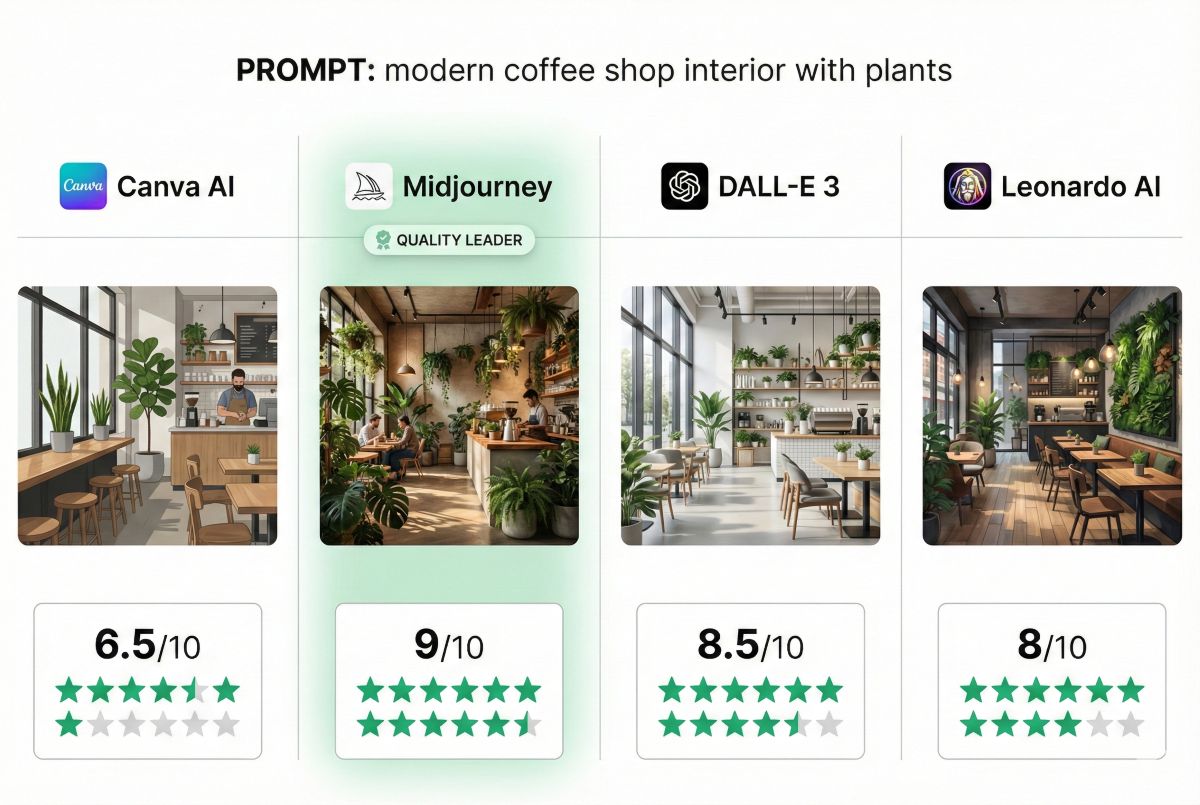
Canva AI vs Dedicated AI Image Generators
How does Canva AI stack up against dedicated image generators? Here’s a comprehensive comparison:
| Feature |
Canva AI |
Midjourney |
DALL-E 3 |
Adobe Firefly |
|---|---|---|---|---|
| Starting Price | Free (50 credits) | $10/month | $20/month (ChatGPT+) | Free (25 credits) |
| Image Quality | ⭐⭐⭐ | ⭐⭐⭐⭐⭐ | ⭐⭐⭐⭐ | ⭐⭐⭐⭐ |
| Ease of Use | ⭐⭐⭐⭐⭐ | ⭐⭐⭐ | ⭐⭐⭐⭐⭐ | ⭐⭐⭐⭐ |
| Design Integration | ⭐⭐⭐⭐⭐ | ⭐⭐ | ⭐⭐ | ⭐⭐⭐⭐⭐ (Adobe CC) |
| Commercial Use | ✅ Yes (Pro) | ✅ Yes (Paid) | ✅ Yes | ✅ Yes (Safest) |
| Best For | Quick social graphics | High-quality art | Text + accuracy | Commercial safety |
Is Canva AI Better Than Leonardo AI?
No—Leonardo AI produces significantly higher quality images with more customization options. However, Canva is easier to use and offers a complete design workflow. Choose Leonardo for quality, Canva for convenience.
Which is Better: Adobe Firefly or Canva AI?
Adobe Firefly produces better images and offers guaranteed commercial safety. Choose Firefly for professional work or if you use Adobe apps. Choose Canva if you’re not in the Adobe ecosystem and prioritize ease of use over quality.
For detailed comparisons of dedicated generators, see our Midjourney vs DALL-E vs Stable Diffusion guide.
Ready to Try Canva AI?
Get 50 free AI generations and access to 610,000+ templates. Start designing in minutes.
Canva AI Pros and Cons
✅ Pros
- Seamless design integration: Generate and use images without downloading/uploading
- Incredibly easy to use: No learning curve if you know Canva
- All-in-one platform: AI + design tools + templates + stock photos in one place
- Generous free tier: 50 lifetime credits to start, no credit card required
- Fast generation: Results in 5-10 seconds
- Commercial license included: Pro plan covers commercial use
- Multiple AI tools: Magic Edit, Expand, Eraser, and more beyond text-to-image
- Regular updates: Quality improvements with each platform update
❌ Cons
- Lower image quality: 6.5/10 vs 8-9/10 for dedicated tools
- Limited customization: Basic style presets only, no advanced parameters
- Struggles with humans: Faces, hands, and poses often distorted
- Text rendering issues: Can’t reliably generate text in images
- Credit system on free tier: 50 lifetime credits then pay-per-use
- No negative prompts: Can’t specify what to exclude
- Resolution limits: Max 1024×1024 for most generations
- Limited artistic range: Better for simple graphics than art
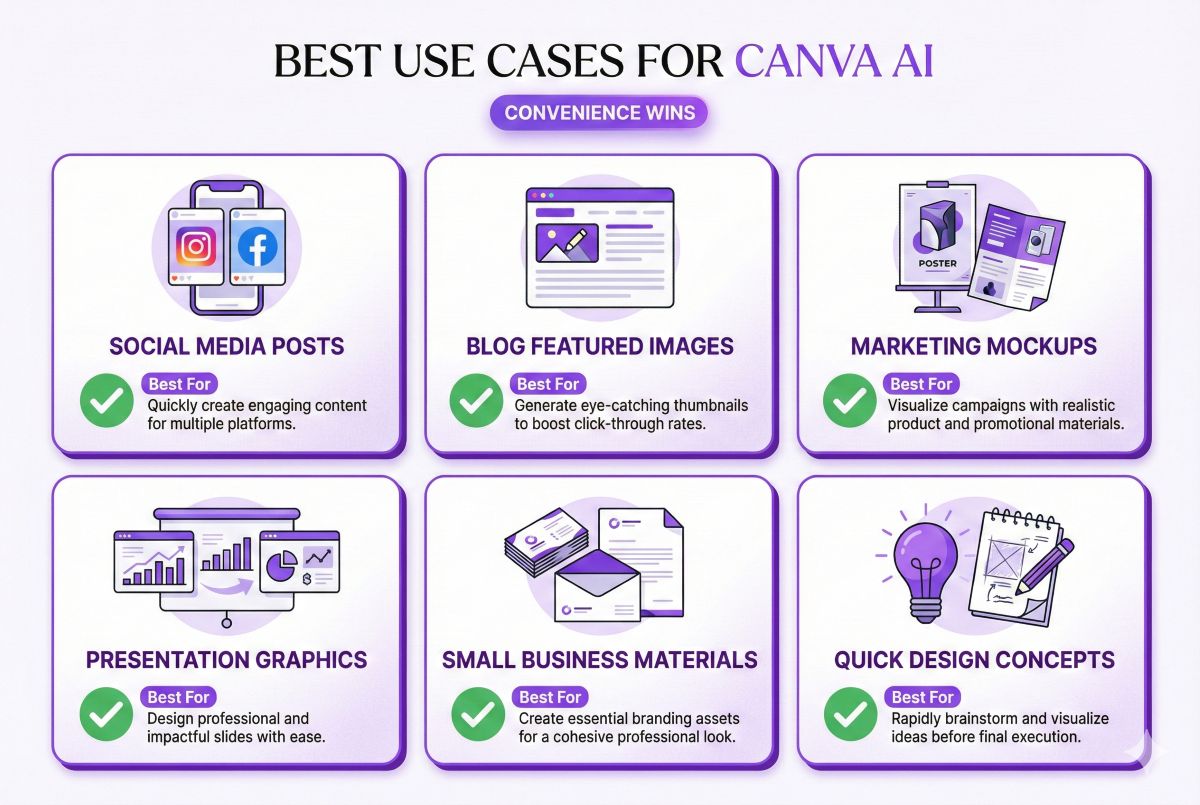
Best Use Cases for Canva AI
Canva AI excels in specific scenarios where convenience outweighs quality needs:
✅ Ideal Use Cases
Social Media Graphics
Instagram posts, Facebook covers, Pinterest pins, LinkedIn banners—Canva AI handles these beautifully. The images are good enough for feeds where users scroll quickly, and the direct-to-template workflow saves significant time.
Presentation Backgrounds
Abstract backgrounds, pattern fills, and decorative elements for slides and presentations. Quality matters less when images serve as background elements rather than focal points.
Blog Post Headers
Quick custom headers for articles and blog posts. Generate a relevant image, add text overlay in Canva, done. No external tools needed.
Email Marketing Visuals
Newsletter headers, promotional banners, and email signature graphics. The 500-pixel-wide email context is forgiving of quality limitations.
Small Business Marketing
Flyers, posters, business cards, and promotional materials for local businesses without design budgets. Good enough for print at typical small-format sizes.
❌ Not Recommended For
- Professional photography: Use Midjourney or hire a photographer
- Character-focused content: Faces will disappoint
- Fine art: Use dedicated AI art generators
- Large format prints: Resolution and detail limitations show
- Logo design: Still requires human design skills (or Ideogram AI for text)
Frequently Asked Questions
Is Canva AI any good?
Canva AI is good for quick, convenience-focused image generation—I’d rate it 6.5/10 for quality. It’s excellent for social media graphics, presentations, and marketing materials where speed matters more than perfection. For high-quality art or photorealistic images, dedicated tools like Midjourney (9/10) or DALL-E 3 (8.5/10) are significantly better.
Which is better, Adobe Firefly or Canva AI?
Adobe Firefly produces higher quality images (7.5/10 vs 6.5/10) and offers guaranteed commercial safety with IP indemnification. Choose Firefly for professional work or Adobe ecosystem integration. Choose Canva for easier general design workflow if you’re not an Adobe user.
Is Canva AI better than Leonardo AI?
No—Leonardo AI produces significantly higher quality images (8/10) with more customization options including model selection and advanced parameters. However, Canva is much easier to use and integrates generation directly into design workflow. Choose Leonardo for quality, Canva for convenience.
Is Canva AI free to use?
Canva offers 50 free AI image generations to all users (lifetime total, not monthly). After that, you need Canva Pro ($15.00/month) for 500 monthly credits, or pay $5 per 100 additional credits. Other AI features like Magic Write have separate limits on the free tier.
Can I use Canva AI images commercially?
Yes—Canva Pro and Teams plans include commercial use rights for AI-generated images. Free tier users have limited commercial rights. The AI images follow the same licensing as Canva’s stock library. However, unlike Adobe Firefly, Canva doesn’t offer IP indemnification for AI content.
What AI model does Canva use?
Canva’s AI image generator uses technology licensed from Stable Diffusion combined with Canva’s own training and fine-tuning. They don’t disclose exact model versions or custom modifications. The model is optimized for design applications rather than maximum artistic quality.
How many AI images can I generate in Canva?
Free users get 50 lifetime generations. Canva Pro provides 500 monthly credits that reset each month. Each text-to-image generation (which produces 4 variations) uses 1 credit. Magic Edit, Expand, and Eraser operations each use 1 credit per action.
Final Verdict: Is Canva AI Worth It?
🎯 The Verdict
Canva AI earns a 4.0/5 rating—not because it’s the best image generator (it isn’t), but because it’s the best integrated solution for non-designers who need quick visuals within a complete design workflow.
✅ Choose Canva AI If:
- You already use Canva for design work
- You prioritize convenience over maximum quality
- You create social media, presentations, or marketing content
- You’re a non-designer who needs quick visuals
- You want AI + templates + stock photos in one subscription
🔄 Choose Alternatives If:
- Image quality is your top priority
- You need photorealistic humans or complex scenes
- You’re creating fine art or professional photography
- You need advanced prompt control and parameters
- You require the absolute best results regardless of workflow
Our Final Recommendation
If you’re already a Canva user, try the AI features—they’re included with Pro and add genuine value to your existing workflow. The 50 free generations let you test without commitment.
If you’re specifically seeking the best AI image quality, Canva isn’t the answer. Use Midjourney for art, DALL-E 3 for accuracy, or Adobe Firefly for commercial safety—then import results into Canva for final design work.
The ideal approach for many users is using Canva AI for 80% of quick needs and dedicated generators for the 20% requiring higher quality. This balanced strategy maximizes both efficiency and output quality.